Edit PDF
Add text, highlights, shapes, and a signature to a PDF online
Open a PDF and edit it in your browser: type on the page, highlight and draw, cover and retype text, place an image or a signature, then rearrange the pages.
Working on your document...
 Google Drive
Ask this document
 Save to Google Drive

Edits Stay in Your Browser
A PDF opened from your computer is rendered and exported right here. It is uploaded only when you save it to your workspace or run a server tool, and then deleted within a few hours.
Type, Mark Up, and Sign
Add text in a choice of fonts, highlight passages, draw freehand, add rectangles, circles, and arrows, place an image, and sign with a drawn signature.
Fix the Pages Too
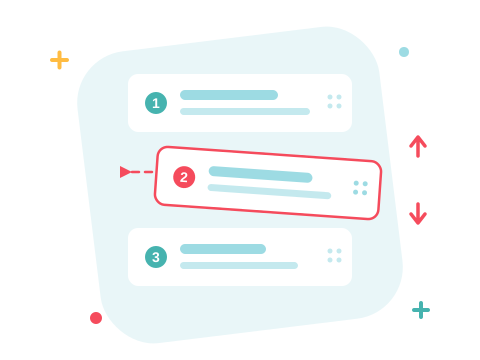
Drag pages into a new order, rotate or delete them, add blank pages, extract a selection to a new PDF, or merge another PDF into the document.
Everything You Need to Edit a PDF Online
Open your file, make the changes on the page, and download the edited PDF — online, in seconds.
How to Edit a PDF Online
- Add your PDF — drop it into the box above or pick it from your computer, Google Drive, or Dropbox.
- Choose a tool from the toolbar to place text, highlight, draw, add shapes or an image, or sign the page. The page rail on the left reorders, rotates, and removes pages.
- Click Export and choose Download PDF to save the edited file, or Save to keep it in your ZonePDF workspace.
Change the Text That Is Already There
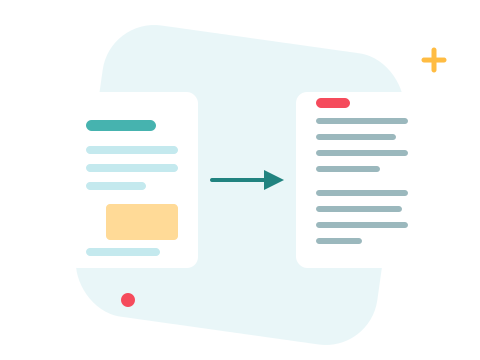
Pick the Edit text tool and click a line: the editor covers the original words in the page's own background colour and opens a matching text box in the same spot, so a wrong date or name can be retyped in place. The Erase tool whites out anything else, and the Text tool adds new lines wherever you need them.
A Secure Online PDF Editor
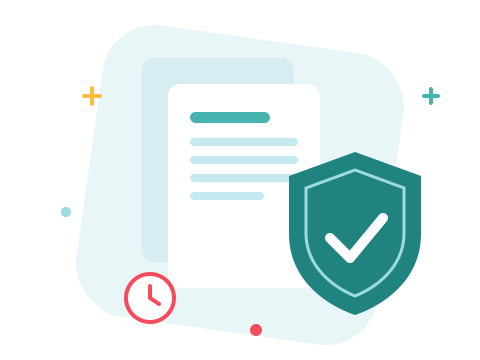
Edit PDF files right in your browser — nothing to install. A file opened from your computer is rendered and exported locally; when you save it or use a server tool, it travels over an encrypted connection and is permanently deleted from our servers within a few hours. Start right away and upgrade when you need higher limits.
Keep Working with Your Edited PDF
Need to go further? Compress the edited PDF so it's easy to email, merge it with other documents, split it into separate files, or convert it to Word. A password-protected PDF cannot be exported — unlock it first.
See all PDF tools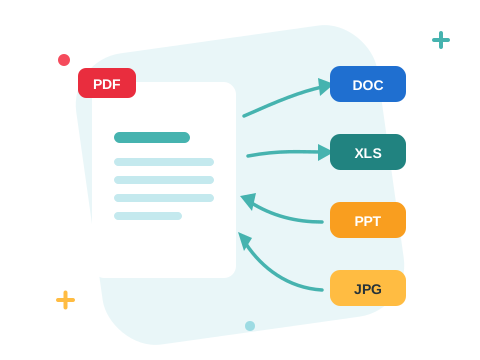
Edit PDF — Frequently Asked Questions
Can I edit the text of an existing PDF?
Yes, within limits. The Edit text tool covers the original words and lets you retype them in a similar font, which works well for fixing a date, a name, or a sentence. It does not reflow whole paragraphs like a word processor — for a full rewrite, convert the PDF to Word, edit it there, and convert it back.
Does ZonePDF upload my PDF when I edit it?
Not until you ask it to. A file opened from your computer is rendered and exported in your browser. Saving it to your workspace, opening it from Google Drive or Dropbox, asking the AI assistant, or running a server tool such as Merge or Compress uploads it over an encrypted connection, and it is deleted within a few hours.
Can I sign a PDF with ZonePDF?
Yes. Choose Signature, draw your signature with a mouse, trackpad, or finger, and place it on the page; your last signature is kept in this browser so you can reuse it. It is a drawn signature image, not a certificate-based digital signature.
Can I add, remove, or reorder pages?
Yes. The page rail on the left shows every page: drag pages into a new order, rotate or remove them, add blank pages, or select several and extract them to a new PDF. The Tools menu also merges another PDF into the document.
Will editing change my original file?
No. The editor works on a copy. Download PDF gives you a new file with your changes, and the original on your computer stays as it was.
Is there a limit to how much I can edit?
Editing is open to everyone, and you can start right away. There is a cap on how many finished files you can download or save before a plan is needed — see the pricing page for the limits.