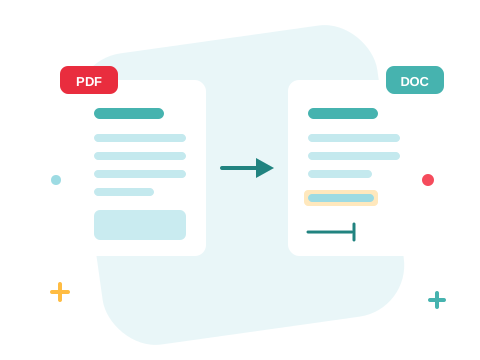
To convert a PDF to Word, open PDF to Word, add your file, and press Convert to Word. There are no settings to pick. The part worth understanding before you start is why the result sometimes needs tidying up — it isn't the converter being careless, it's that PDF and Word describe a document in fundamentally different ways.
This covers:
- The four steps, start to finish
- Why formatting shifts, in plain terms
- Which documents convert cleanly and which never will
- Why scanned PDFs are a different problem entirely
- What to do when the result needs fixing
Convert a PDF to Word in four steps
- Open PDF to Word. Nothing to install, no account needed to start.
- Add your file. Drag it in, or pick it from your device, Google Drive, or Dropbox.
- Press Convert to Word. No quality settings or layout options to choose — there's one conversion and this is it.
- Download the .docx and open it in Word, Google Docs, LibreOffice, or Pages.
If you've added several files, the button shows how many are selected — Convert to Word [ 3 ] — and converts just those. With nothing selected, it converts everything in the list.
Need that PDF editable?
Try PDF to WordWhy the formatting shifts
This is the thing that makes conversion feel unpredictable, and it's simple once you see it.
A PDF records where marks sit on a page. This character at these coordinates, this line at this position, in this font. It's a description of a finished page — closer to a photograph of a layout than to a document.
A Word file records a flow of content. This is a heading, this is a paragraph, this is a table with these columns, and the software works out where things land when it renders.
Converting from the first to the second means reconstructing structure that the PDF never stored. The converter has to look at the positions of things and infer the intent: these lines are probably a paragraph, this grid of text is probably a table, this larger bold line is probably a heading. Most of the time those inferences are right. When a layout is unusual, some of them aren't.
That's why the same converter handles a plain report perfectly and makes a mess of a magazine page. It isn't quality — it's how much structure there was to recover.
What converts cleanly, and what doesn't
| Converts well | Usually needs a tidy-up |
|---|---|
| Single-column text documents | Multi-column layouts like newsletters and academic papers |
| Standard fonts | Unusual or subset-embedded fonts |
| Simple tables with visible borders | Nested tables, or tables laid out with whitespace instead of borders |
| Straightforward headings and lists | Text boxes, sidebars, pull quotes |
| Documents originally written in Word | Documents generated by design software |
The rule of thumb: the closer the PDF was to a Word document in the first place, the better it comes back. A contract someone exported from Word converts almost perfectly, because the structure the converter is trying to infer really was there. A brochure laid out in design software was never a flow of paragraphs, so there's less to recover.
Convert what you need, not the whole file
If you only need to edit two pages of a 90-page document, split those pages out first and convert just them. Less layout to reconstruct means fewer things to fix, and a much smaller document to work in.
Scanned PDFs are a different problem
If your PDF came from a scanner or a phone camera, converting it to Word will not give you editable text — and it's worth being clear about why.
A scanned page is an image. There is no text in the file at all, just a picture that happens to look like text to you. Conversion extracts text that exists; it can't extract text that was never there.
Recognising text is a separate job
Turning a picture of words into actual words is optical character recognition, and it isn't part of format conversion. If you need the text out of a scan, you'll need OCR software for that step first. Converting, merging, splitting, and compressing all leave a scan exactly as scanned.
The quick way to tell which kind you have: open the PDF and try to select a line of text with your cursor. If you can highlight individual words, there's real text in there and conversion will find it. If your cursor draws a box over the whole page instead, it's an image.
The other conversions
Same flow, different destination:
| You have | You want | Tool |
|---|---|---|
| Word document | PDF to Word | |
| Spreadsheet | PDF to Excel | |
| Slides | PDF to PPT | |
| Images | PDF to JPG | |
| Word document | Word to PDF | |
| Photos or images | JPG to PDF |
Going to PDF is the easy direction, incidentally — the source file already has all the structure, and the PDF just has to record the finished layout. That's why Word to PDF is reliably faithful while PDF to Word takes some inference. How to convert Word to PDF covers that direction, including the one thing that can shift on the way: fonts.
See all PDF tools.
When the result needs fixing
| What you're seeing | What happened | What to do |
|---|---|---|
| Document is images, no editable text | The PDF was a scan — no text layer to extract | Run OCR software on it before converting |
| Columns run into each other | The converter read a multi-column layout as one flow | Convert the pages you need individually, then re-lay them out |
| Table lost its structure | The "table" was aligned with spacing, not real table borders | Rebuild it in Word, or try PDF to Excel if it's mostly numbers |
| Fonts look wrong | The original fonts aren't on your machine | Word substitutes; set the font you want across the document |
| Line and page breaks in odd places | Positions were preserved more literally than the flow | Turn on formatting marks in Word and delete the stray breaks |
None of these mean the conversion failed — they're the visible edges of the inference described above. For a long document, converting and tidying is still dramatically faster than retyping.
Frequently Asked Questions
How do I convert a PDF to an editable Word document?
Open PDF to Word, add your PDF, and press Convert to Word. You'll get a .docx file you can open in Word, Google Docs, LibreOffice, or Pages.
Why does my converted document look different from the PDF?
Because a PDF stores the position of marks on a page while a Word file stores a flow of content, so converting means reconstructing structure the PDF never recorded. Simple single-column documents come back very close to the original; complex layouts need some tidying.
Can I convert a scanned PDF to editable text?
No. A scan is an image of a page with no text in it, and conversion can only extract text that already exists. Making a scan editable requires optical character recognition, which is a separate step from format conversion.
How can I tell whether my PDF is scanned?
Try to select a line of text with your cursor. If you can highlight individual words, the file has real text. If the cursor draws a box across the whole page, it's an image.
Do I need Microsoft Word installed?
No. The conversion runs in your browser, and the .docx it produces opens in Google Docs, LibreOffice, and Pages as well as Word.
Can I convert several PDFs at once?
Yes. Add them all, and the Convert to Word button shows how many are selected. With nothing selected, everything in the list is converted.