
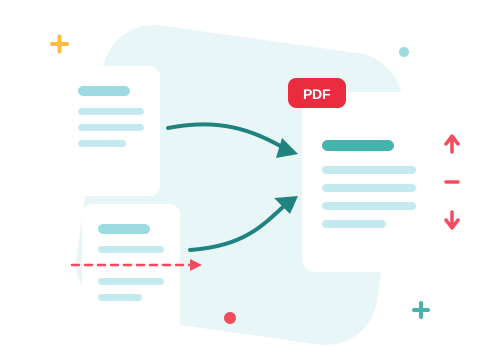
To merge specific pages from several PDFs, open Merge PDF, add your files, and switch the view to Pages. Every page of every file becomes its own card: drag the cards into order, remove the ones you don't want, rotate any that are sideways, and press MERGE. The output contains exactly the cards in the grid, in the order you see them — no splitting files apart first, no cleaning up afterwards.
This covers:
- The five steps, start to finish
- How the grid decides what's in the merge — and what isn't
- Dropping the pages you don't need
- Straightening sideways pages as you go
- Fixing a grid you've edited too far
Merge specific pages in five steps
- Open Merge PDF. Nothing to install and no account needed to start.
- Add your files. Drag them onto the drop zone, or use Add More Files to pick from your device, Google Drive, or Dropbox.
- Switch to Pages. The view switcher above the file list has three options — List, Icons, and Pages. Pages breaks every file into individual page cards, each labeled with its filename and page number, so you always know where a page came from.
- Shape the output. Drag cards into any order — including between pages of a different file. The × on a card removes that page from the merge; the rotate control turns it a quarter-turn clockwise per click, and the thumbnail turns with it.
- Press MERGE and download the combined file.
On long documents the thumbnails draw in as you scroll, so a big grid stays responsive while you work.
Have the PDFs in front of you?
Try Merge PDFThe grid is the merge
In List and Icons view, merging works file by file: the on-screen file order decides the output, and the checkboxes decide which files are included — the rules covered in our guide to merging whole files.
Pages view replaces both. The grid is the merge: every card in it goes into the output, in reading order, whatever the checkboxes say. One card, one page — a card's label tells you its source file and page number, and cards from different files can sit anywhere relative to each other. Alternating pages from two documents, moving one file's appendix behind another file's chapters, promoting a single page to the front — it's all the same drag.
The checkboxes don't apply here
Selecting files with the checkboxes changes nothing in Pages view — everything in the grid gets merged. To leave something out, remove its card.
Drop the pages you don't need
The remove control is for everything you'd otherwise have to split out by hand: fax cover sheets, the blank backs a duplex scanner inserts, "this page intentionally left blank", a signature page that should appear once instead of at the end of every contract.
Removing a page only shapes the merged output. Your uploaded files stay exactly as they are, so you can run one merge, change the grid, and run a different combination from the same uploads.
Straighten sideways pages as you go
Each click of the rotate control turns that page 90° clockwise, and the turn is applied on top of however the page was already oriented — so a landscape scan in a portrait document, or a page that arrived upside down, straightens out without a separate pass through a rotation tool. The thumbnail shows the result as you click, and the merged file comes out the way the grid looks.
Rotation is per page, not per file: one sideways page in a 40-page scan takes one click, and the other 39 stay put.
When to stay in List or Icons view
If you're combining whole files in a known order, the file views are the shorter path — reorder a handful of rows instead of a few hundred cards. How to Merge PDF Files Online in the Order You Want covers that workflow, including merging only a selection of the files you've uploaded.
And when the goal is the opposite of merging — turning one PDF's pages into separate files — that's Split PDF.
When the grid isn't what you expected
| What you're seeing | What happened | Fix |
|---|---|---|
| You removed a page by mistake | Removals shape the grid until you change it | Reload the page and reopen Pages view — the grid rebuilds with every page of every file, still uploaded |
| A page is sideways in the output | Its card was rotated, or the source page was | Rotate the card in quarter-turns until the thumbnail looks right, then merge again |
| Pages in the wrong order | The output follows the grid's reading order | Drag the cards, not the files — then merge again |
| Pressing MERGE does nothing | The grid is empty, or still reading your files | Keep at least one card and wait for the grid to finish building |
| The result is too large to email | It contains everything the kept pages did | Run it through Compress PDF — merge first, compress once |
Frequently Asked Questions
Can I merge only a few pages from each PDF?
Yes. Open Merge PDF, switch to Pages view, and remove the cards you don't want. The merged file contains exactly the cards left in the grid, in the order shown.
Do rotating or removing pages change my original files?
No. Grid edits apply only to the merged output. The files you uploaded stay as they are, so you can build a different combination from the same uploads afterwards.
Can I mix pages from different PDFs in any order?
Yes. Every page is its own card, and cards drag anywhere — including between pages of another file. Alternating or interleaving pages from several documents works the same as any other reorder.
Can I include the same page twice?
Not from one card — each page appears in the grid once. If you need a page repeated, add its file a second time: both copies show up as separate cards you can place independently.
I removed a page by mistake — how do I get it back?
Reload the page and reopen Pages view. The grid rebuilds with every page of every uploaded file, and your files survive the reload.
Do I need an account?
Not to start. Without one there's a cap on how many files the workspace holds at once; if you work above it regularly, the pricing page covers the higher limits.